参考链接
Hexo-Matery主题美化
1. 下载安装Matery主题
Matery主题是一个采用 Material Design 和响应式设计的 Hexo 博客主题,首先在hexo官网主题里面搜索 Matery 主题,点击进入作者闪烁飞狐的 github,在搜索结果的下面一点。
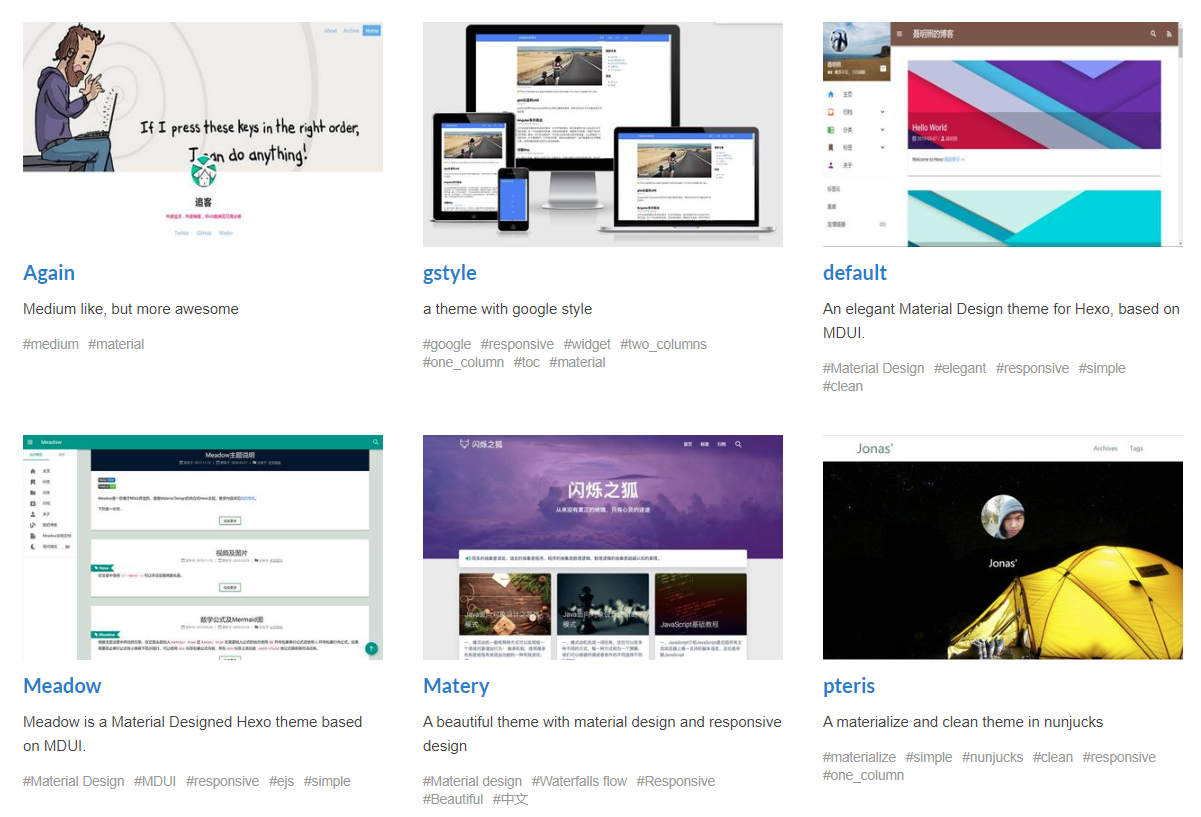
-
可以下载
master分支的最新稳定版的代码,解压缩后将hexo-theme-matery复制到Hexo 的themes文件夹中 -
也可以选择在
themes文件夹下使用git clone命令来下载:
git clone https://github.com/blinkfox/hexo-theme-matery.git2. 切换主题
下载完后,将Hexo根目录下_config.yml 的 theme 的值修改为你下载主题的文件名。
# Extensions
## Plugins: https://hexo.io/plugins/
## Themes: https://hexo.io/themes/
theme: hexo-theme-matery关于根目录下_config.yml 文件的其它修改建议:
- 请修改
_config.yml的url的值为你的网站主URL(如:http://xxx.github.io)。 - 建议修改两个
per_page的分页条数值为6的倍数,如:12、18等,这样文章列表在各个屏幕下都能较好的显示。 - 如果是中文用户,则建议修改
language的值为zh-CN。
3. 新建主题必备的页面
3.1 标签 tags 页
tags 页是用来展示所有标签的页面,如果 source 目录下还没有 tags/index.md 文件,那么就需要新建一个。
hexo new page "tags"编辑刚刚新建的页面文件 /source/tags/index.md,至少需要以下内容:
---
title: tags
date: 2022-09-24 15:35:29
type: "tags"
layout: "tags"
---
3.2 分类 categories 页
categories 页是用来展示所有分类的页面,如果在你的博客 source 目录下还没有 categories/index.md 文件,那么你就需要新建一个,命令如下:
hexo new page "categories"编辑你刚刚新建的页面文件 /source/categories/index.md,至少需要以下内容:
---
title: categories
date: 2022-09-24 15:36:04
type: "categories"
layout: "categories"
---
3.3 新建关于我 about 页
about 页是用来展示关于我和我的博客信息的页面,如果在你的博客 source 目录下还没有 about/index.md 文件,那么你就需要新建一个,命令如下:
hexo new page "about"编辑你刚刚新建的页面文件 /source/about/index.md,至少需要以下内容:
---
title: about
date: 2022-09-24 15:36:26
type: "about"
layout: "about"
---
3.4 新建留言板 contact 页(可选的)
contact 页是用来展示留言板信息的页面,如果在你的博客 source 目录下还没有 contact/index.md 文件,那么你就需要新建一个,命令如下:
hexo new page "contact"编辑你刚刚新建的页面文件 /source/contact/index.md,至少需要以下内容:
---
title: contact
date: 2022-09-24 16:29:57
type: "contact"
layout: "contact"
---注:本留言板功能依赖于第三方评论系统,请激活你的评论系统才有效果。并且在主题的
_config.yml文件中,第19至21行的“菜单”配置,取消关于留言板的注释即可。
3.5 新建友情链接 friends 页(可选的)
friends 页是用来展示友情链接信息的页面,如果在你的博客 source 目录下还没有 friends/index.md 文件,那么你就需要新建一个,命令如下:
hexo new page "friends"编辑你刚刚新建的页面文件 /source/friends/index.md,至少需要以下内容:
---
title: friends
date: 2022-09-24 15:38:23
type: "friends"
layout: "friends"
---
同时,在你的博客 source 目录下新建 _data 目录,在 _data 目录中新建 friends.json 文件,文件内容如下所示:
[{
    "avatar": "https://fulequn.github.io/img/avatar.png",
    "name": "付乐群",
    "introduction": "世界和我爱着你,向着自己的梦想前进",
    "url": "https://fulequn.github.io/",
    "title": "前去学习"
}, {
    "avatar": "http://image.luokangyuan.com/4027734.jpeg",
    "name": "闪烁之狐",
    "introduction": "编程界大佬,技术牛,人还特别好,不懂的都可以请教大佬",
    "url": "https://blinkfox.github.io/",
    "title": "前去学习"
}, {
    "avatar": "https://blog.17lai.site/medias_webp/avatar.webp",
    "name": "夜法之书",
    "introduction": "平凡的脚步也可以走出伟大的行程",
    "url": "https://blog.17lai.site/",
    "title": "前去学习"
}]
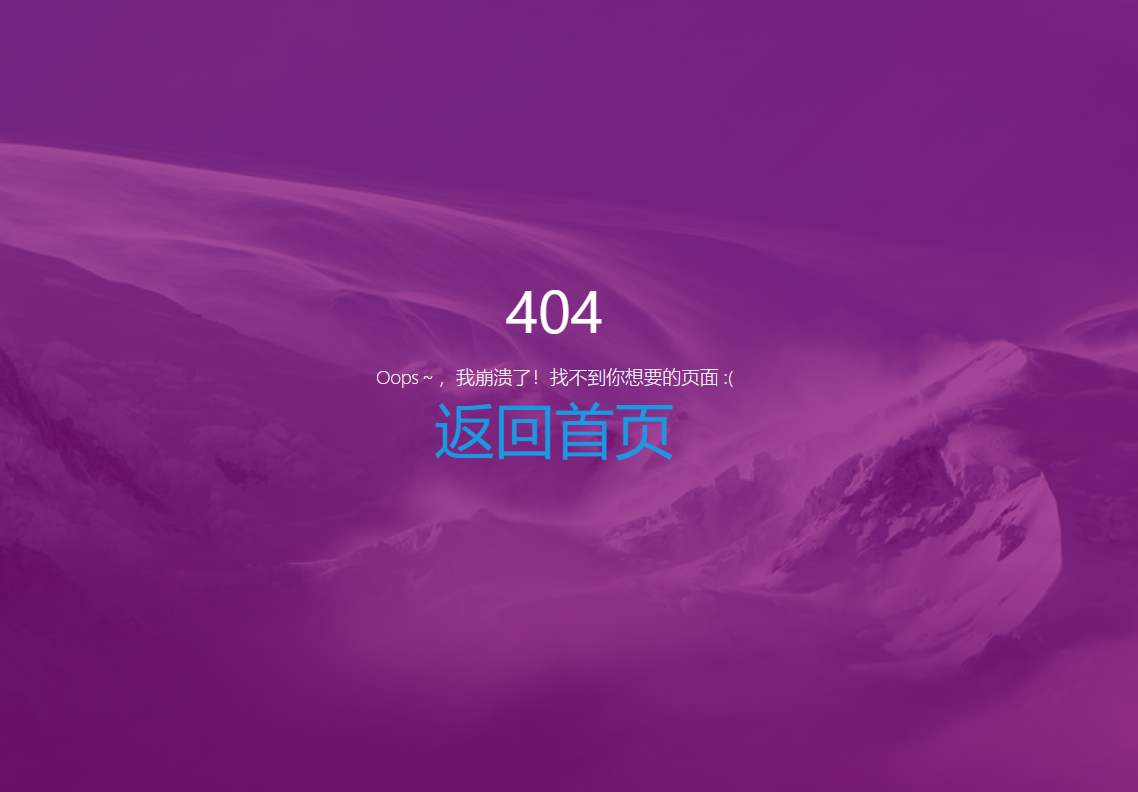
3.6 新建 404 页(与官网不同)
首先再站点根目录下的 source 文件夹下新建 404.md 文件,文件内容如下所示:
---
title: 404
date: 2022-09-24 15:43:05
type: "404"
layout: "404"
description: "Oops~,我崩溃了!找不到你想要的页面 :("
---紧接着在hexo-theme-matery主题文件夹的 layout 目录下新建 404.ejs 文件,添加内容如下:
<style type="text/css">
    /* don't remove. */
    .about-cover {
        height: 90.2vh;
    }
</style>
<div class="bg-cover pd-header about-cover">
    <div class="container">
        <div class="row">
            <div class="col s10 offset-s1 m8 offset-m2 l8 offset-l2">
                <div class="brand">
                    <div class="title center-align">
                        404
                    </div>
                    <div class="description center-align">
                        <%= page.description %>
                    </div>
                    <div class="title center-align">
                        <a href="/" target="_blank">返回首页</a>
                    </div>
                </div>
            </div>
        </div>
    </div>
</div>

<script>
    // 每天切换 banner 图.  Switch banner image every day.
    $('.bg-cover').css('background-image', 'url(/medias/banner/' + new Date().getDay() + '.jpg)');
</script>
Tips: 不要在本地试验,本地的时候输入错误的页面不会显示404页面的。
3.7 新增 navigate 页
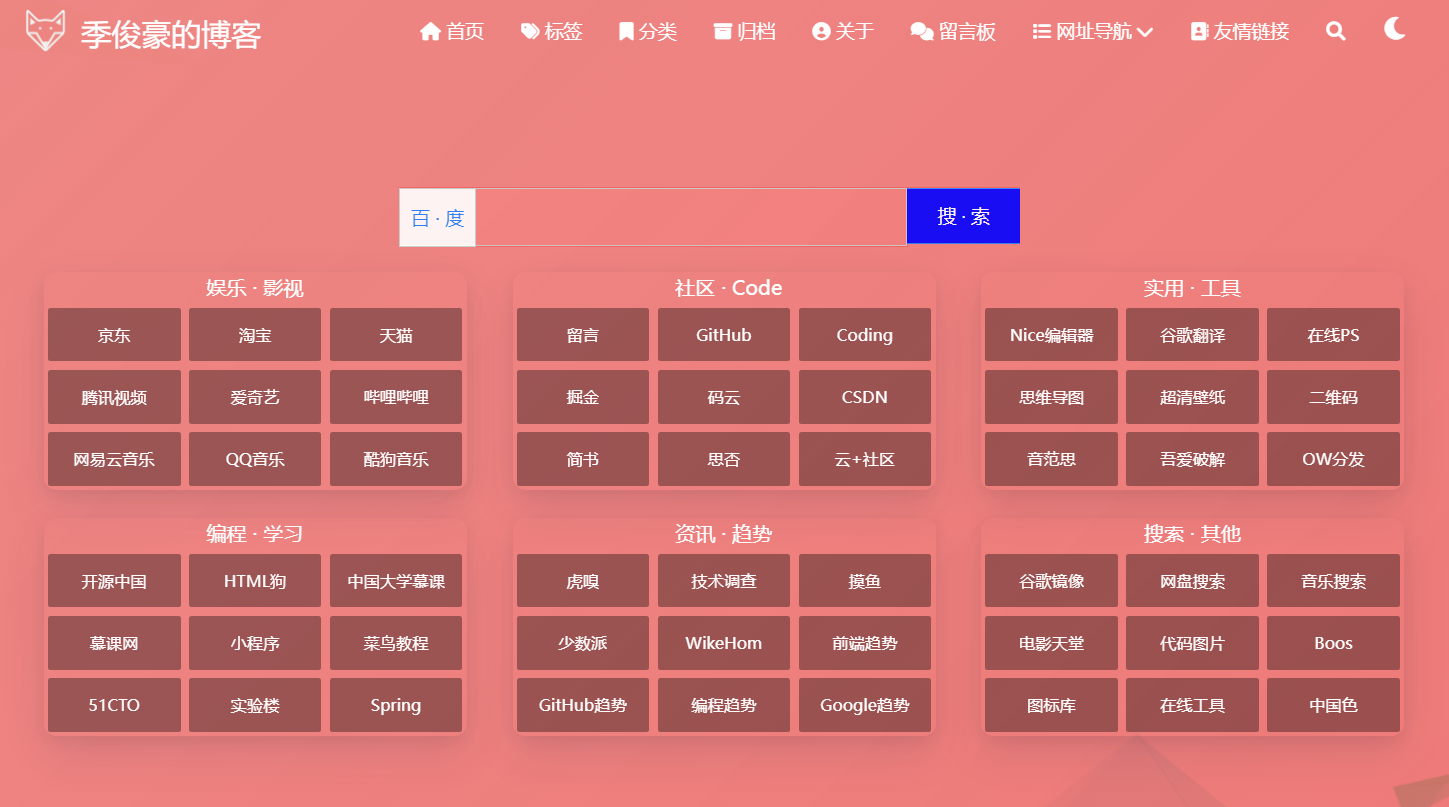
navigate 页是用来展示导航信息的页面,如果在你的博客 source 目录下还没有 navigate/index.md 文件,那么你就需要新建一个,命令如下:
hexo new page navigate编辑你刚刚新建的页面文件 /source/navigate/index.md,至少需要以下内容:
---
title: 导航
date: 2023-04-22 11:19:14
type: "navigate"
layout: "navigate"
---在hexo-theme-matery主题配置文件config.yml中添加导航
menu:
  Index:
    url: /
    icon: fas fa-home
  Tags:
    url: /tags
    icon: fas fa-tags
  Categories:
    url: /categories
    icon: fas fa-bookmark
  Archives:
    url: /archives
    icon: fas fa-archive
  About:
    url: /about
    icon: fas fa-user-circle
  Contact:
    url: /contact
    icon: fas fa-comments
  网址导航:
    icon: fas fa-list
    children:
      - name: New Bing
        url: https://www.bing.com
      - name: OpenAi
        url: https://chat.openai.com
      - name: Navigate
        url: /navigate

  Friends:
    url: /friends
    icon: fas fa-address-book
在 ``hexo-theme-matery主题的layout下新建navigate.ejs`
<div class="navi-height bg-cover pd-header ">
    <div class=" link-box container">
        <!-- 搜索框 -->
        <div class="baidu baidu-2 large-screen">
            <form name="f" action="https://www.baidu.com/" target="_blank">
                <div id="Select-2">
                    <div class="Select-box-2" id="baidu">
                        <ul style="height: 46px;">
                            <li class="this_s">百 · 度</li>
                            <li class="bing_s">必 · 应</li>
                            <li class="google_s">谷 · 歌</li>
                            <li class="baidu_s">百 · 度</li>
                        </ul>
                    </div> <input name="wd" id="kw-2" maxlength="100" autocomplete="off" type="text">
                </div>
                <div class="qingkong" id="qingkong" title="清 · 空" style="display: none;">x</div> <input value="搜 · 索"
                    id="su-2" type="submit">
                <ul class="keylist"></ul>
            </form>
        </div> <!-- 链接 -->
        <div class="row tags-posts ">
            <div class="col s12 m6 l4 friend-div" data-aos="zoom-in-up">
                <div class="card">
                    <div class="jj-list-tit">娱乐 · 影视</div>
                    <ul class="jj-list-con">
                        <li><a href="https://www.jd.com/" class="link-3" target="_blank">京东</a>
                        <li><a href="https://www.taobao.com/" class="link-3" target="_blank">淘宝</a></li>
                        <li><a href="https://www.tmall.com/" class="link-3" target="_blank">天猫</a></li>
                        </li>
                        <li><a href="https://v.qq.com/" class="link-3" target="_blank">腾讯视频</a></li>
                        <li><a href="http://www.iqiyi.com/" class="link-3" target="_blank">爱奇艺</a></li>
                        <li><a href="https://www.bilibili.com/" class="link-3" target="_blank">哔哩哔哩</a> </li>
                        <li><a href="https://music.163.com/" class="link-3" target="_blank">网易云音乐</a></li>
                        <li><a href="https://y.qq.com/" class="link-3" target="_blank">QQ音乐</a></li>
                        <li><a href="http://www.kugou.com/" class="link-3" target="_blank">酷狗音乐</a></li>
                    </ul>
                </div>
            </div>
            <div class="col s12 m6 l4 friend-div" data-aos="zoom-in-up">
                <div class="card">
                    <div class="jj-list-tit">社区 · Code</div>
                    <ul class="jj-list-con">
                        <li><a href="https://www.mobaijun.com/contact/" class="link-3" target="_blank">留言</a></li>
                        <li><a href="https://github.com/" class="link-3" target="_blank">GitHub</a></li>
                        <li><a href="https://coding.net/" class="link-3" target="_blank">Coding</a></li>
                        <li><a href="https://juejin.im/" class="link-3" target="_blank">掘金</a></li>
                        <li><a href="https://gitee.com/" class="link-3" target="_blank">码云</a></li>
                        <li><a href="https://www.csdn.net/" class="link-3" target="_blank">CSDN</a></li>
                        <li><a href="https://www.jianshu.com/" class="link-3" target="_blank">简书</a></li>
                        <li><a href="https://segmentfault.com/" class="link-3" target="_blank">思否</a></li>
                        <li><a href="https://cloud.tencent.com/developer/" class="link-3" target="_blank">云+社区</a></li>
                    </ul>
                </div>
            </div>
            <div class="col s12 m6 l4 friend-div" data-aos="zoom-in-up">
                <div class="card">
                    <div class="jj-list-tit">实用 · 工具</div>
                    <ul class="jj-list-con">
                        <li><a href="https://mdnice.com/" class="link-3" target="_blank">Nice编辑器</a></li>
                        <li><a href="https://translate.google.cn/" class="link-3" target="_blank">谷歌翻译</a></li>
                        <li><a href="https://www.uupoop.com/" class="link-3" target="_blank">在线PS</a></li>
                        <li><a href="https://www.processon.com/" class="link-3" target="_blank">思维导图</a></li>
                        <li><a href="https://wallhaven.cc/" class="link-3" target="_blank">超清壁纸</a></li>
                        <li><a href="https://cli.im/" class="link-3" target="_blank">二维码</a></li>
                        <li><a href="http://www.yinfans.me/" class="link-3" target="_blank">音范思</a></li>
                        <li><a href="https://www.52pojie.cn/" class="link-3" target="_blank">吾爱破解</a></li>
                        <li><a href="https://my.openwrite.cn/" class="link-3" target="_blank">OW分发</a></li>
                    </ul>
                </div>
            </div>
            <div class="col s12 m6 l4 friend-div" data-aos="zoom-in-up">
                <div class="card">
                    <div class="jj-list-tit">编程 · 学习</div>
                    <ul class="jj-list-con">
                        <li><a href="https://www.oschina.net/" class="link-3" target="_blank">开源中国</a></li>
                        <li><a href="https://htmldog.com/" class="link-3" target="_blank">HTML狗</a></li>
                        <li><a href="https://www.icourse163.org/" class="link-3" target="_blank">中国大学慕课</a></li>
                        <li><a href="https://www.imooc.com/" class="link-3" target="_blank">慕课网</a></li>
                        <li><a href="http://www.wxapp-union.com/" class="link-3" target="_blank">小程序</a></li>
                        <li><a href="https://www.runoob.com/" class="link-3" target="_blank">菜鸟教程</a></li>
                        <li><a href="https://blog.51cto.com/" class="link-3" target="_blank">51CTO</a></li>
                        <li><a href="https://www.shiyanlou.com/library/" class="link-3" target="_blank">实验楼</a></li>
                        <li><a href="https://spring.io/" class="link-3" target="_blank">Spring</a></li>
                    </ul>
                </div>
            </div>
            <div class="col s12 m6 l4 friend-div" data-aos="zoom-in-up">
                <div class="card">
                    <div class="jj-list-tit">资讯 · 趋势</div>
                    <ul class="jj-list-con">
                        <li><a href="https://www.huxiu.com/" class="link-3" target="_blank">虎嗅</a></li>
                        <li><a href="https://insights.stackoverflow.com/" class="link-3" target="_blank">技术调查</a></li>
                        <li><a href="http://www.asciiworld.com/" class="link-3" target="_blank">摸鱼</a></li>
                        <li><a href="https://sspai.com/" class="link-3" target="_blank">少数派</a></li>
                        <li><a href="https://zh.wikihow.com/" class="link-3" target="_blank">WikeHom</a></li>
                        <li><a href="https://www.awesomes.cn/rank?sort=hot" class="link-3" target="_blank">前端趋势</a></li>
                        <li><a href="https://github-trending.com/" class="link-3" target="_blank">GitHub趋势</a></li>
                        <li><a href="https://www.tiobe.com/" class="link-3" target="_blank">编程趋势</a></li>
                        <li><a href="https://trends.google.com/" class="link-3" target="_blank">Google趋势</a></li>
                    </ul>
                </div>
            </div>
            <div class="col s12 m6 l4 friend-div" data-aos="zoom-in-up">
                <div class="card">
                    <div class="jj-list-tit">搜索 · 其他</div>
                    <ul class="jj-list-con">
                        <li><a href="https://ac.scmor.com/" class="link-3" target="_blank">谷歌镜像</a></li>
                        <li><a href="http://www.pansoso.com/" class="link-3" target="_blank">网盘搜索</a></li>
                        <li><a href="http://tool.mkblog.cn/music/" class="link-3" target="_blank">音乐搜索</a></li>
                        <li><a href="https://www.dytt8.net/" class="link-3" target="_blank">电影天堂</a></li>
                        <li><a href="https://carbon.now.sh/" class="link-3" target="_blank">代码图片</a></li>
                        <li><a href="https://www.zhipin.com/" class="link-3" target="_blank">Boos</a></li>
                        <li><a href="https://fontawesome.com/" class="link-3" target="_blank">图标库</a></li>
                        <li><a href="https://www.qvdv.com/tools/qvdv-guid.html" class="link-3" target="_blank">在线工具</a>
                        </li>
                        <li><a href="http://zhongguose.com/" class="link-3" target="_blank">中国色</a></li>
                    </ul>
                </div>
            </div>
        </div>
        <script> /*选择搜索引擎*/ $('.Select-box ul').hover(function () { $(this).css('height', 'auto') }, function () { $(this).css('height', '40px') }); $('.Select-box-2 ul').hover(function () { $(this).css('height', 'auto') }, function () { $(this).css('height', '46px') }); $('.Select-box li').click(function () { var _tihs = $(this).attr('class'); var _html = $(this).html(); if (_tihs == 'baidu_s') { _tihs = 'https://www.baidu.com/s'; _name = 'wd'; } if (_tihs == 'google_s') { _tihs = 'https://www.google.com/search'; _name = 'q'; } if (_tihs == 'bing_s') { _tihs = 'https://www.bing.com/search'; _name = 'q'; } $('.baidu form').attr('action', _tihs); $('.this_s').html(_html); $('#kw').attr('name', _name); $('.Select-box ul').css('height', '40px') }); $('.Select-box-2 li').click(function () { var _tihs = $(this).attr('class'); var _html = $(this).html(); if (_tihs == 'baidu_s') { _tihs = 'https://www.baidu.com/s'; _name = 'wd'; } if (_tihs == 'google_s') { _tihs = 'https://www.google.com/search'; _name = 'q'; } if (_tihs == 'bing_s') { _tihs = 'https://www.bing.com/search'; _name = 'q'; } $('.baidu form').attr('action', _tihs); $('.this_s').html(_html); $('#kw-2').attr('name', _name); $('.Select-box-2 ul').css('height', '48px') }); //清空输入框内容 $('.qingkong').click(function () { cls(); $(this).css('display', 'none') }); function cls() { var sum = 0; var t = document.getElementsByTagName("INPUT"); for (var i = 0; i < t.length; i++) { if (t[i].type == 'text') { ++sum; t[i].value = "";//清空 } } } //清空输入框按钮的显示和隐藏 function if_btn() { var btn_obj = document.getElementById("kw") || document.getElementById("kw-2"); var cls_btn = document.getElementById("qingkong"); var btn_obj_val; var times; //当元素获得焦点时 if (btn_obj == '' || btn_obj == null) { return false; //如果没有找到这个元素,则将函数返回,不继续执行 } btn_obj.onfocus = function () { times = setInterval(function () { btn_obj_val = btn_obj.value; if (btn_obj_val != 0) { cls_btn.style.display = "block"; } else { cls_btn.style.display = "none"; } }, 200); } //元素失去焦点时 btn_obj.onblur = function () { clearInterval(times); } } </script>
    </div>
</div>
<style>
    * {
        margin: 0;
        padding: 0;
        font-family: "微软雅黑"
    }
    ul,li,h1,h2,h3,h4,h5,h6,p,form,dl,dt,dd {
        margin: 0px;
        padding: 0px;
        font-size: 14px;
        font-weight: normal;
    }

    img {
        border-style: none;
    }

    li {
        list-style: none;
        float: left
    }

    a {
        text-decoration: none
    }

    .card {
        background-color: rgba(25, 240, 229, 0);
        width: 96%;
        margin-left: 2%
    }

    .baidu {
        float: left;
        margin-left: 100px;
    }

    .baidu form {
        position: relative
    }

    .Select-box ul {
        height: 40px;
        position: absolute;
        left: -1px;
        top: 0px;
        z-index: 9999;
        background: #FFF;
        border: 1px solid #ccc;
        border-top: none;
        overflow: hidden
    }

    .Select-box li {
        width: 60px;
        line-height: 40px;
        font-size: 14px;
        color: #484848;
        border: 0;
        cursor: pointer;
    }

    .Select-box li:hover {
        background: #3385ff;
        color: #FFF;
    }

    .Select-box .this_s {
        color: #317ef3;
    }

    .Select-box .this_s:hover {
        background: #FFF;
        color: #317ef3;
    }

    .qingkong {
        position: absolute;
        right: 120px;
        top: 12px;
        width: 18px;
        height: 18px;
        background: rgba(0, 0, 0, 0.1);
        border-radius: 18px;
        line-height: 16px;
        color: #666666;
        cursor: pointer;
        text-align: center;
        font-size: 14px;
        display: none;
    }

    .qingkong:hover {
        background: rgba(0, 0, 0, 0.2);
    }

    .qingkong:active {
        background: rgba(0, 0, 0, 0.3);
    }

    .baidu-2 {
        width: 100%;
        height: 110px;
        margin: 0 auto;
        background: none;
        padding-top: 50px;
    }

    .baidu-2 form {
        width: 520px;
        margin: 0 auto;
    }

    .baidu-2 input {
        padding: 13px 8px;
        opacity: 0.9;
        font-size: 15px;
    }

    #Select-2 {
        float: left;
    }

    .Select-box-2 {
        text-align: center;
        float: left;
        position: relative;
    }

    .Select-box-2 ul {
        height: 46px;
        position: absolute;
        left: 0px;
        top: 1px;
        z-index: 9999;
        background: rgba(255, 255, 255, 0.9);
        border: 1px solid #ccc;
        border-top: none;
        overflow: hidden
    }

    .Select-box-2 li {
        width: 60px;
        line-height: 46px;
        font-size: 15px;
        color: #484848;
        border: 0;
        cursor: pointer;
    }

    .Select-box-2 li:hover {
        background: #3385ff;
        color: #FFF;
    }

    .Select-box-2 .this_s {
        color: #317ef3;
    }

    .Select-box-2 .this_s:hover {
        background: none;
        color: #317ef3;
    }

    #kw-2 {
        width: 335px;
        outline: 0;
        border: 1px solid #ccc;
        background: rgba(255, 255, 255, 0.2);
        color: #000000;
        padding-left: 70px;
        font-weight: bold;
    }

    /*修改搜索框样式*/
    #su-2 {
        width: 90px;
        background: blue;
        border: none;
        border-top: #3385ff 1px solid;
        border-bottom: 1px solid #2d78f4;
        color: #FFF;
        cursor: pointer;
        /*去轮廓阴影*/
        outline: none;
    }

    /*光标移动到搜索框颜色*/
    #su-2:hover {
        background: blue;
        border-bottom: 1px solid blue;
    }

    #su-2:active {
        background: blue;
        box-shadow: inset 1px 1px 3px blue;
        -webkit-box-shadow: inset 1px 1px 3px blue;
    }

    .jj-list-tit {
        font-size: 16px;
        line-height: 25px;
        color: #ffffff;
        width: 100%;
        padding-left: 38.5%;
    }

    .jj-list-con {
        overflow: hidden;
        margin: 0 auto
    }

    /*控制网站列表间距*/
    .jj-list-con li {
        width: 31.333%;
        margin: 1%;
    }

    .link-3 {
        display: block;
        background: rgba(0, 0, 0, .35);
        color: #FFF;
        font-size: 13px;
        text-align: center;
        line-height: 35px;
        padding: 4px 0;
        border-radius: 2px;
        transition: all 0.2s
    }

    .link-3:hover {
        background: rgba(0, 0, 0, .45);
        font-size: 15px;
        font-weight: bold
    }

    /*1栏 小于584*/
    @media only screen and (max-width: 584px) {
        .navi-height {
            height: 1300px;
        }

        .link-box {
            margin-top: 5%;
        }

        .large-screen {
            display: none;
        }
    }

    /* 2栏 大于584 小于993px */
    @media only screen and (min-width: 584px) and (max-width: 993px) {
        .navi-height {
            height: 800px;
        }

        .link-box {
            margin-top: 5%;
        }

        .large-screen {
            display: none;
        }
    }

    /*3栏 大于993px*/
    @media only screen and (min-width: 993px) {
        .navi-height {
            position: absolute;
            width: 100%;
            height: 100%;
        }
    }

    /* 隐藏footer */
    .page-footer {
        display: none;
    }
</style>
<% if (theme.banner.enable) { %>
<script>
    // 每天切换 banner 图.  Switch banner image every day.
    var bannerUrl = "<%- theme.jsDelivr.url %><%- url_for('/medias/banner/') %>" + new Date().getDay() + '.jpg';
    $('.bg-cover').css('background-image', 'url(' + bannerUrl + ')');
</script>
<% } else { %>
<script>
    $('.bg-cover').css('background-image', 'url(<%- theme.jsDelivr.url %><%- url_for('/medias/banner/0.jpg') %>)');
</script>
<% } %>
4. 添加各种插件
4.1 文章搜索功能(建议安装)
npm install hexo-generator-search --save在 Hexo 根目录下的 _config.yml 文件中,新增以下的配置项:
search:
  path: search.xml
  field: post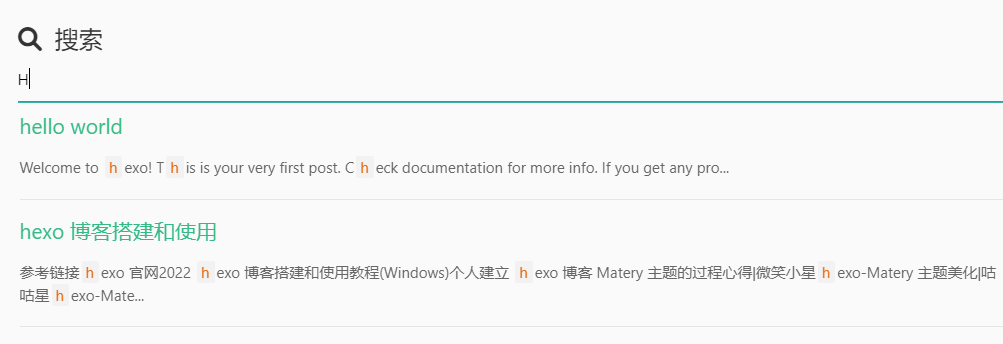
4.2 中文链接转拼音(建议安装)
如果你的文章名称是中文的,那么 Hexo 默认生成的永久链接也会有中文,这样不利于 SEO,且 gitment 评论对中文链接也不支持。我们可以用 hexo-permalink-pinyin Hexo 插件使在生成文章时生成中文拼音的永久链接。
安装命令如下:
npm i hexo-permalink-pinyin --save在 Hexo 根目录下的 _config.yml 文件中,新增以下的配置项:
permalink_pinyin:
  enable: true
separator: '-' # default: '-'注:除了此插件外,hexo-abbrlink 插件也可以生成非中文的链接。
第二种方法:
npm install hexo-abbrlink --save在 Hexo 根目录下的 _config.yml 文件中,修改 permalink: ,并在文件末尾新增 abbrlink:配置项:
permalink: :year/:month:day:abbrlink.html

abbrlink:
  alg: crc16 #算法选项:crc16丨crc32
  rep: dec #输出进制:dec为十进制,hex为十六进制
4.3 文章字数统计插件(建议安装)
如果你想要在文章中显示文章字数、阅读时长信息,可以安装 hexo-wordcount插件。
安装命令如下:
npm i --save hexo-wordcount然后只需在本主题下的 _config.yml 文件中,将各个文章字数相关的配置激活即可:
wordCount:
  enable: false # 将这个值设置为 true 即可.
  postWordCount: true
  min2read: true
  totalCount: true
4.4 添加emoji表情支持(可选)
本主题新增了对emoji表情的支持,使用到了 hexo-filter-github-emojis 的 Hexo 插件来支持 emoji表情的生成,把对应的markdown emoji语法(::,例如::smile:)转变成会跳跃的emoji表情,安装命令如下:
npm install hexo-filter-github-emojis --save在 Hexo 根目录下的 _config.yml 文件中,新增以下的配置项:
githubEmojis:
  enable: true
  className: github-emoji
  inject: true
  styles:
  customEmojis:
在网站https://www.webfx.com/tools/emoji-cheat-sheet/可以搜索常用表情对应代码,例如😍
执行 hexo clean && hexo g 重新生成博客文件,然后就可以在文章中对应位置看到你用emoji语法写的表情了。
5. 修改社交链接
在hexo-theme-matery主题文件夹的 _config.yml 文件中,默认支持 QQ、GitHub 和邮箱等的配置,你可以在主题文件的 /layout/_partial/social-link.ejs 文件中,新增、修改你需要的社交链接地址,增加链接可参考如下代码:
<% if (theme.socialLink.github) { %>
    <a href="<%= theme.socialLink.github %>" class="tooltipped" target="_blank" data-tooltip="访问我的GitHub" data-position="top" data-delay="50">
        <i class="fab fa-github"></i>
    </a>
<% } %>其中,社交图标(如:fa-github)你可以在 Font Awesome 中搜索找到。以下是常用社交图标的标识,供你参考:
- Facebook:
fab fa-facebook - Twitter:
fab fa-twitter - Google-plus:
fab fa-google-plus - Linkedin:
fab fa-linkedin - Tumblr:
fab fa-tumblr - Medium:
fab fa-medium - Slack:
fab fa-slack - Sina Weibo:
fab fa-weibo - Wechat:
fab fa-weixin - QQ:
fab fa-qq - Zhihu:
fab fa-zhihu
6. 修改打赏的二维码图片
在hexo-theme-matery主题文件夹的 source/medias/reward 文件中,你可以替换成你的的微信和支付宝的打赏二维码图片,如果图片后缀不一样的话,需要到主题的_config.yml下面修改。
reward:
  enable: true
  title: 你的赏识是我前进的动力
  wechat: /medias/reward/wechat.jpg
  alipay: /medias/reward/alipay.jpg
7. 配置音乐播放器(可选的)
要支持音乐播放,在主题的 _config.yml 配置文件中激活music配置即可:
# 是否在首页显示音乐
music:
  enable: true
  title:     	    # 非吸底模式有效
    enable: true
    show: 听听音乐
  server: netease   # require music platform: netease, tencent, kugou, xiami, baidu
  type: playlist    # require song, playlist, album, search, artist
  id: 503838841     # require song id / playlist id / album id / search keyword
  fixed: false      # 开启吸底模式
  autoplay: false   # 是否自动播放
  theme: '#42b983'
  loop: 'all'       # 音频循环播放, 可选值: 'all', 'one', 'none'
  order: 'random'   # 音频循环顺序, 可选值: 'list', 'random'
  preload: 'auto'   # 预加载,可选值: 'none', 'metadata', 'auto'
  volume: 0.7       # 默认音量,请注意播放器会记忆用户设置,用户手动设置音量后默认音量即失效
  listFolded: true  # 列表默认折叠
server可选netease(网易云音乐),tencent(QQ音乐),kugou(酷狗音乐),xiami(虾米音乐),
baidu(百度音乐)。
type可选song(歌曲),playlist(歌单),album(专辑),search(搜索关键字),artist(歌手)id获取方法示例: 浏览器打开网易云音乐,点击我喜欢的音乐歌单,浏览器地址栏后面会有一串数字,
playlist的id即为这串数字。
8. 看板娘模块的安装和使用(可选)
cnpm install --save hexo-helper-live2d下载完成后,可以在node_modules文件夹中找到自己安装的插件。
然后下载你想要的看板娘模块(可以自己到网上找哪个合心意的),执行命令:
cnpm install {packagename}
# 例如cnpm install live2d-widget-model-haru
下载完成后,回到blog根目录下配置_config.yml,添加以下代码(model要根据自己情况设置):
live2d:
  enable: true
  scriptFrom: local
  pluginRootPath: live2dw/
  pluginJsPath: lib/
  pluginModelPath: assets/
  tagMode: false
  debug: false
  model:
    use: live2d-widget-model-z16
  display:
    position: right
    width: 200
    height: 400
  mobile:
    show: false
这样在右下角有看板娘啦!
npm ls --depth 0 #命令查看 npm 安装各 hexo 插件的情况,在package.json里面也有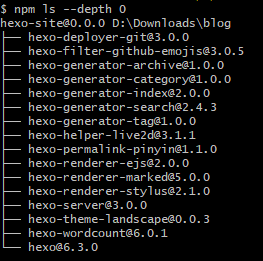
9. 新建文章模板修改
为了新建文章方便,我们可以修改一下文章模板,建议将/scaffolds/post.md修改为如下代码:
---
title: {{ title }}
date: {{ date }}
author:
img:
coverImg:
top: false
cover: false
toc: true
mathjax: false
password:
summary:
categories:
tags:
---
这样新建文章后 一些Front-matter参数不用你自己补充了,修改对应信息就可以了。
Front-matter 选项中的所有内容均为非必填的。但仍然建议至少填写 title 和 date 的值。
| 配置选项 | 默认值 | 描述 |
|---|---|---|
| title | Markdown 的文件标题 | 文章标题,强烈建议填写此选项 |
| date | 文件创建时的日期时间 | 发布时间,强烈建议填写此选项,且最好保证全局唯一 |
| author | 根 _config.yml 中的 author | 文章作者 |
| img | featureImages 中的某个值 | 文章特征图,推荐使用图床 |
| top | true | 推荐文章(文章是否置顶),如果 top 值为 true,则会作为首页推荐文章 |
| cover | false | v1.0.2 版本新增,表示该文章是否需要加入到首页轮播封面中 |
| coverImg | 无 | v1.0.2 版本新增,表示该文章在首页轮播封面需要显示的图片路径,如果没有,则默认使用文章的特色图片 |
| password | 无 | 文章阅读密码,如果要对文章设置阅读验证密码的话,就可以设置 password 的值,该值必须是用 SHA256 加密后的密码,防止被他人识破。前提是在主题的 config.yml 中激活了 verifyPassword 选项 |
| toc | true | 是否开启 TOC,可以针对某篇文章单独关闭 TOC 的功能。前提是在主题的 config.yml 中激活了 toc 选项 |
| mathjax | false | 是否开启数学公式支持 ,本文章是否开启 mathjax,且需要在主题的 _config.yml 文件中也需要开启才行 |
| summary | 无 | 文章摘要,自定义的文章摘要内容,如果这个属性有值,文章卡片摘要就显示这段文字,否则程序会自动截取文章的部分内容作为摘要 |
| categories | 无 | 文章分类,本主题的分类表示宏观上大的分类,只建议一篇文章一个分类 |
| tags | 无 | 文章标签,一篇文章可以多个标签 |
| reprintPolicy | cc_by | 文章转载规则, 可以是 cc_by, cc_by_nd, cc_by_sa, cc_by_nc, cc_by_nc_nd, cc_by_nc_sa, cc0, noreprint 或 pay 中的一个 |
注意:
- 如果 img 属性不填写的话,文章特色图会根据文章标题的 hashcode 的值取余,然后选取主题中对应的特色图片,从而达到让所有文章都的特色图各有特色。
- date 的值尽量保证每篇文章是唯一的,因为本主题中 Gitalk 和 Gitment 识别 id 是通过 date 的值来作为唯一标识的。
- 如果要对文章设置阅读验证密码的功能,不仅要在 Front-matter 中设置采用了 SHA256 加密的 password 的值,还需要在主题的 _config.yml 中激活了配置。有些在线的 SHA256 加密的地址,可供你使用:开源中国在线工具、chahuo、站长工具。
- 您可以在文章 md 文件的 front-matter 中指定 reprintPolicy 来给单个文章配置转载规则
10. 修改网站相关信息
#这是根目录下的配置文件信息
# Site
title:     #网站标题
subtitle:  #网站副标题
description:     #网站描述description 主要用于5E0,告诉搜索引擎一个关于您站点的简单描述
keywords:  #网站的关键词。使用半角逗号“,”分隔多个关键词
author:    #您的名字
language:  #网站使用的语言。建议修改为zh-CN
timezone:  #网站时区。Hexo默认使用您电脑的时区。


# 这是主题配置文件的相关信息
# 配置网站favicon和网站LOGO
# 此处我用的CDN,也可以使用本地文件
favicon:
logo:
11. 代码高亮!!
从 Hexo5.0 版本开始自带了 prismjs 代码语法高亮的支持,本主题对此进行了改造支持。
11.1 卸载hexo-prism-plugin插件
如果你的博客中曾经安装过 hexo-prism-plugin 的插件,那么你须要执行 npm uninstall hexo-prism-plugin 来卸载掉它,否则生成的代码中会有 { 和 } 的转义字符。一定要卸载!!
11.2 禁用highlight,启用prismjs
然后,修改 Hexo 根目录下 _config.yml 文件中 highlight.enable 的值为 false,并将 prismjs.enable 的值设置为 true,主要配置如下:
highlight:                      # 代码块的设置
  enable: false                 # 开启代码块高亮
  line_number: true             # 显示行数
  auto_detect: false            # 如果未指定语言,则启用自动检测
  tab_replace: ''               # 用 n 个空格替换 tabs;如果值为空,则不会替换 tabs
  wrap: true
  hljs: false
prismjs:
  enable: true
  preprocess: true
  line_number: true
tab_replace: ''11.3 自定义prismjs样式
主题中默认的 prismjs 主题是 Tomorrow Night,如果你想定制自己的主题,可以前往 prismjs 下载页面 定制下载自己喜欢的主题 js和css 文件,替换掉 hexo-theme-matery 主题文件夹中的 source/libs/prism/prism.css 文件即可。也可以直接从我的github的libs/prism里面下载,自带的和定制下载的都有点小问题。
然后修改hexo-theme-matery 主题文件夹中的 _config.yml。
libs:
  css:
    ...
    prism: /libs/prism/prism.css
    ...
  js:
    ...
    prism: /libs/prism/prism.js
    ...
11.4 出现的问题
当面运行测试的时候会发现,代码前面没有行数,但有空格,这真的是折磨。

这需要在hexo-theme-matery主题文件的 source/css/matery.css 文件中修改
# 修改前
pre {
    padding: 2rem 1rem 1rem 3rem !important;
    border-radius: 0.35rem;
    tab-size: 4;
}
# 修改后
pre {
    padding: 2rem 1rem 1rem 1rem !important;
    border-radius: 0.35rem;
    tab-size: 4;
}
12. 插入PDF
npm install --save hexo-pdf13. 插入公式
Matery 主题多行公式或者复杂公式显示问题。 这个问题是因为模板渲染引擎和 mathjax 部分字符冲突,可以选择不使用 mathjax,使用 Katex 渲染公式。当然我觉得最方便得还是更换渲染引擎,其实本质还是使用 Katex 渲染。
Hexo 自带的渲染引擎是 hexo-renderer-marked,有人修改为hexo-renderer-kramed(markdown-it-katex),但只改善了一小部分,使用的 Matery 主题的时候还是存在冲突问题。建议使用hexo-renderer-markdown-it-plus,下面是别人的魔改版本自带各种插件。
upupming/hexo-renderer-markdown-it-plus
npm uninstall hexo-renderer-marked --save
npm install @upupming/hexo-renderer-markdown-it-plus --save
调用 Ketax 需要写 Ketax 的 css,直接在layout.ejs里面写入<link rel="stylesheet" type="text/css" href="https://cdnjs.cloudflare.com/ajax/libs/KaTeX/0.11.1/katex.min.css">
主配置文件中新增:
markdown_it_plus:
  render:
    html: true
    xhtmlOut: false
    breaks: true
    linkify: true
    typographer: true
    quotes: '“”‘’'
  plugins:
  anchors:
    level: 2
    collisionSuffix: 'v'
    permalink: true
    permalinkClass: header-anchor
    permalinkSide: 'left'
    permalinkSymbol: 
同时需要把主题配置文件中的 mathjax 禁用,此时文章中设置的mathjax无效,不管是true还是false,一律采用katex渲染公式:
mathjax:
  enable: false
  #cdn: https://cdnjs.cloudflare.com/ajax/libs/mathjax/3.2.2/es5/tex-svg.js
  #cdn: https://cdnjs.cloudflare.com/ajax/libs/mathjax/3.2.2/es5/tex-mml-chtml.min.js
  cdn: https://cdnjs.cloudflare.com/ajax/libs/mathjax/2.7.5/MathJax.js?config=TeX-AMS_HTML
  #cdn: https://cdn.bootcss.com/mathjax/2.7.5/MathJax.js?config=TeX-AMS-MML_HTMLorMML
14. 预加载loading动画
模仿Butterfly主题,在Matery 主题目录 /layout/_widget 下新增文件 loading.ejs,将以下内容写入 loading.ejs
<% if (theme.preloader.enable) { %>
<div>
    <div></div>
    <div></div>
    <div>
        <div>
            <div></div>
        </div>
        <div>
            <div></div>
        </div>
        <div>加载中...</div>
    </div>
</div>
<script>
    window.addEventListener('load', function(){
        document.body.style.overflow = 'auto';
        document.getElementById('loading-box').classList.add("loaded")
    }, false)
</script>
<% } %>
接着在 Matery 主题目录 source/css 下新增 loading.css ,并将以下内容写入 loading.css。
#loading-box .loading-left-bg,
#loading-box .loading-right-bg {
  position: fixed;
  z-index: 1000;
  width: 50%;
  height: 100%;
  background-color: #37474f;
  transition: all 0.5s;
}

#loading-box .loading-right-bg {
  right: 0;
}

#loading-box > .spinner-box {
  position: fixed;
  z-index: 1001;
  display: flex;
  justify-content: center;
  align-items: center;
  width: 100%;
  height: 100vh;
}

#loading-box .spinner-box .configure-border-1 {
  position: absolute;
  padding: 3px;
  width: 115px;
  height: 115px;
  background: #ffab91;
  animation: configure-clockwise 3s ease-in-out 0s infinite alternate;
}

#loading-box .spinner-box .configure-border-2 {
  left: -115px;
  padding: 3px;
  width: 115px;
  height: 115px;
  background: rgb(63, 249, 220);
  transform: rotate(45deg);
  animation: configure-xclockwise 3s ease-in-out 0s infinite alternate;
}

#loading-box .spinner-box .loading-word {
  position: absolute;
  color: #ffffff;
  font-size: 0.8rem;
}

#loading-box .spinner-box .configure-core {
  width: 100%;
  height: 100%;
  background-color: #37474f;
}

div.loaded div.loading-left-bg {
  transform: translate(-100%, 0);
}

div.loaded div.loading-right-bg {
  transform: translate(100%, 0);
}

div.loaded div.spinner-box {
  display: none !important;
}

@keyframes configure-clockwise {
  0% {
    transform: rotate(0);
  }

  25% {
    transform: rotate(90deg);
  }

  50% {
    transform: rotate(180deg);
  }

  75% {
    transform: rotate(270deg);
  }

  100% {
    transform: rotate(360deg);
  }
}

@keyframes configure-xclockwise {
  0% {
    transform: rotate(45deg);
  }

  25% {
    transform: rotate(-45deg);
  }

  50% {
    transform: rotate(-135deg);
  }

  75% {
    transform: rotate(-225deg);
  }

  100% {
    transform: rotate(-315deg);
  }
}
然后找到 Matery 主题目录 /layout/_partial 下找到 head.ejs,并在 <head> 标签中添加以下内容引入 loading.css 文件。
<link rel="stylesheet" type="text/css" href="<%- theme.jsDelivr.url %><%- url_for('/css/loading.css') %>">再找到 Matery 主题目录 /layout 下找到 layout.ejs,然后在 <body> 标签下引入 loading.ejs。直接添加在 <body> 标签所有内容的最前面。
<%- partial('_widget/loading') %>在 Matery 主题配置文件 _config.yml 中新增配置属性 preloader。
# 是否开启页面加载动画 true 开启,false 关闭
preloader:
  enable: true
最后需要
hexo clean && hexo g && hexo s总结
以上就是Matery主题的安装和美化过程,当然还有很多功能等着大家探索,可以根据自己的喜好,安装各种插件。
谢谢大家!